







S3 Browser0.3.2

S3DAT / Native Mac browser
Room to browse.Room to remember.
A native Mac browser with tab groups you can move around, a personal viewing hub and a memory that keeps its sources.
Download for Mac- 0.3.2
- macOS 15.4+
- Apple silicon
- Free

01 / Floating tab groups
Give your tabs room to move.
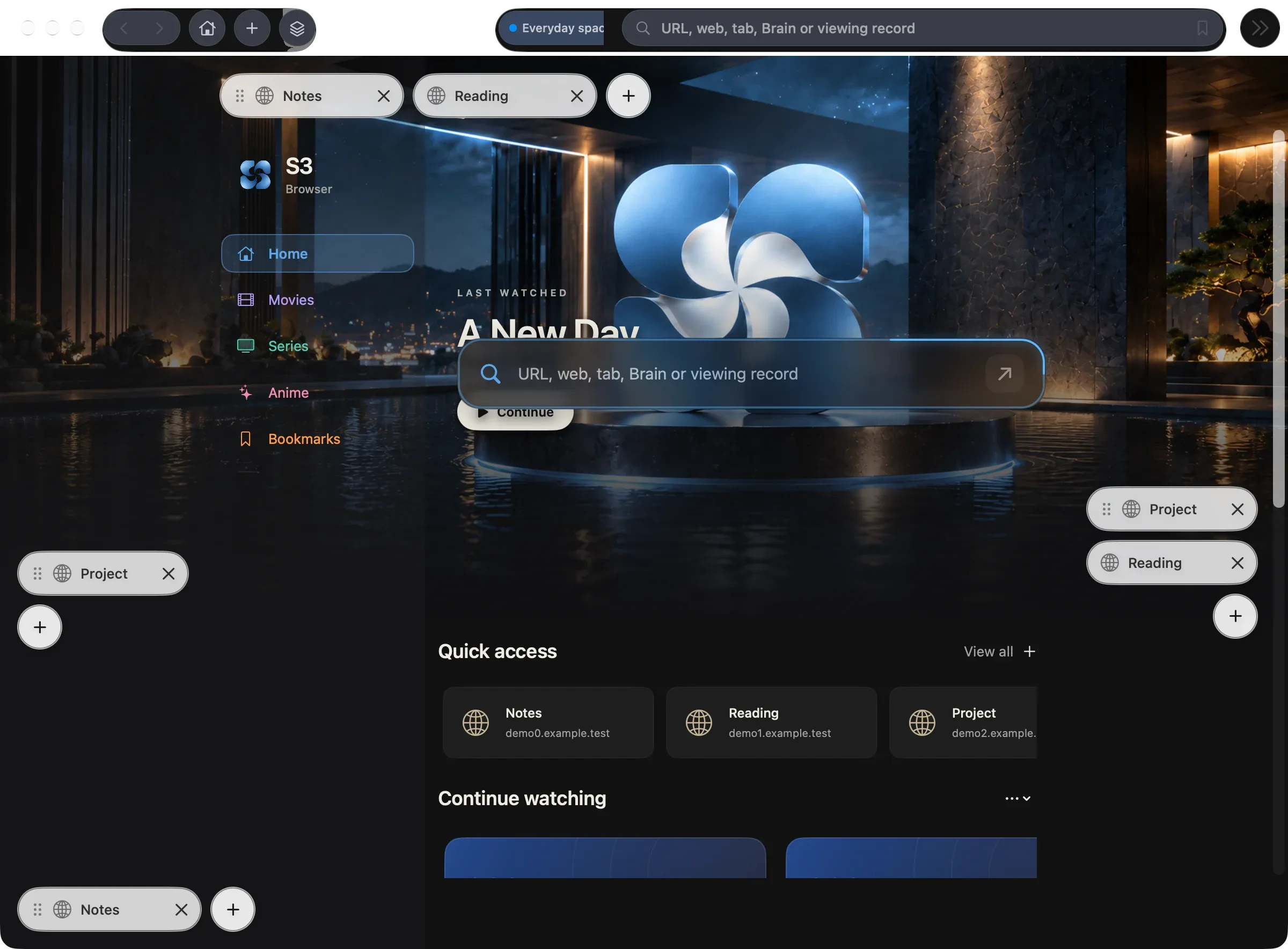
Your tabs do not have to live in one long strip. Pull a group away from the row and move it through the window. Choose any of the four edges and position it along that edge.
Use the six-dot handle to move the whole group, or drag a single tab to give it a place of its own.
- Move freely while dragging; place groups along all four edges.
- Keep independent groups on the same edge.
- Reorder tabs and reach extra tabs with overflow controls.
02 / Electric tether while dragging
A little electricity. A clear connection.
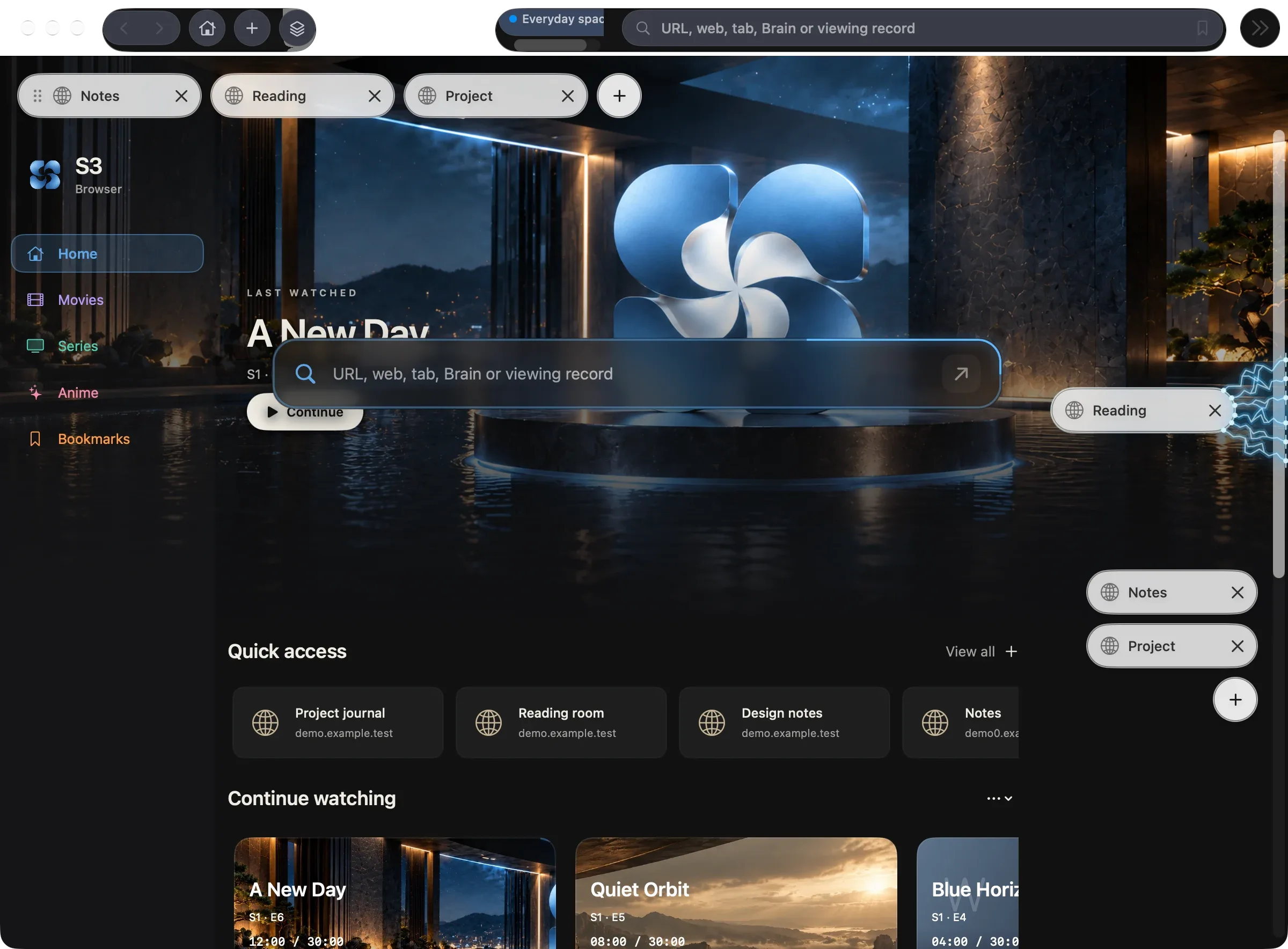
As you drag a tab toward an edge, blue-white electric strands connect the glass to that edge. The connection grows stronger as you get closer, making the relationship easy to see.
It is visual guidance: the magnet-like pull does not move your tabs for you. Where you release still decides where they land.
- Feedback appears while you drag, then clears when you release.
- A gap opens between tabs to show an insertion position.
- Reduced motion keeps a quieter, static connection.
Try it / Floating tabs
Make room. Feel the pull.
Move these sample groups around the window. Bring one toward an edge to see the tether, then release to dock it.
Your workspace
Four edges to dock to
Follow your own thread.
Room to floatGGuideNNotes
LListenLLibrary
SSourcesIIdeas
Docsdocked · Top
Musicdocked · Top
Researchfloating
Research is floating. Docs and Music are docked at the top.
03 / Workspace checkpoints
Leave a checkpoint. Come back to it.
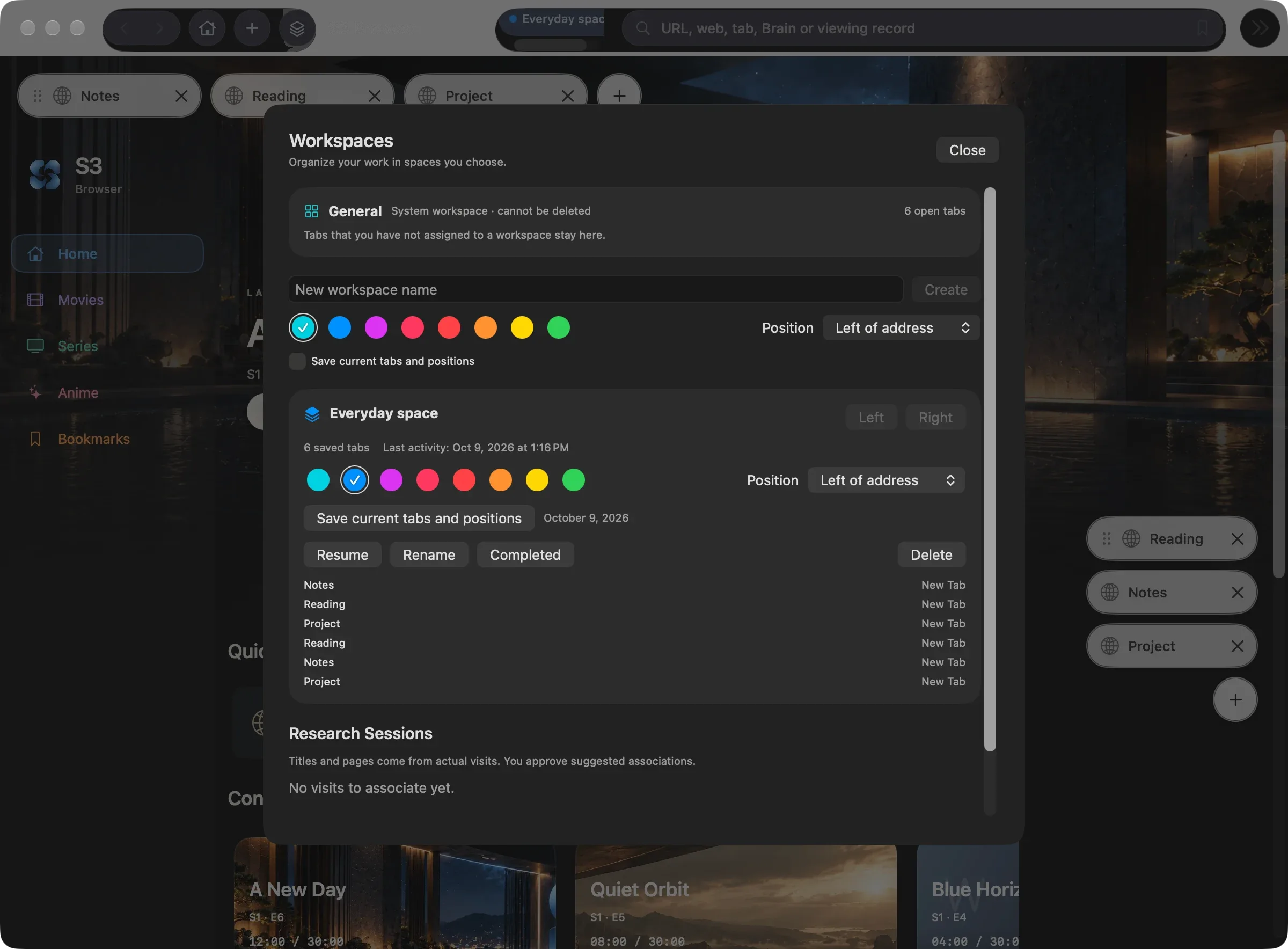
Give a project its own named workspace, colour and toolbar position. Save a checkpoint of its tabs, selected page and group arrangement when the work reaches a useful stopping point.
Reopen that saved context later without discarding your other open tabs.
- Name and colour each workspace.
- Save and reopen workspace checkpoints.
- Keep notes and outcomes associated with the work.
04 / Home & Continue Watching
A Home that brings you back.
Open your saved sites from Quick access, then pick up a supported video from Continue Watching. Home brings your links and locally recorded viewing progress into one cinematic space.
Browse Movies and Series, change the hero artwork to your own image, and adjust its position and zoom.
- Return to the original site at the saved HTML5 video position.
- Edit a title, mark a record watched or remove it.
- One search finds web results, tabs, workspaces, Brain items and viewing records.
05 / Browser Brain
Keep the words. Keep the source.
Select useful text on a page and save it with the page address in S3 Browser Brain. Review it, add a note and come back to the original source whenever you need the context.
Keyword search works without a model. Optional on-device semantic recall helps you search by meaning, and the local Laya assistant suggests a type or connection for you to review.
- Seven types: quote, claim, idea, question, decision, reference and research.
- Filter saved information; keep conflicting claims and their sources visible.
- Export to JSON or Markdown; Laya never saves a suggestion without your review.

06 / Page watchers
Keep an eye on a public page.
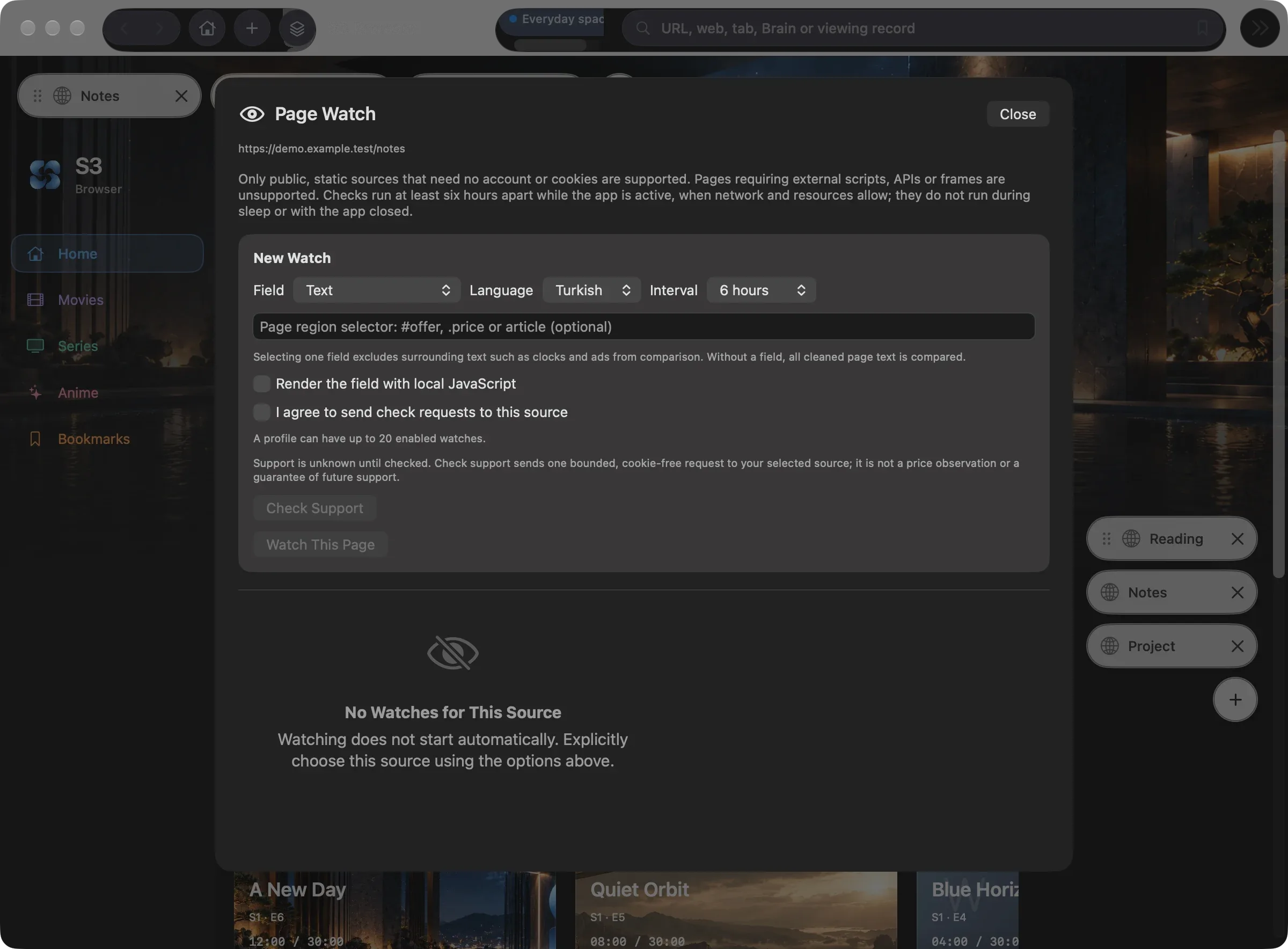
Choose a public, cookie-free static HTTPS page, or a supported part of it, to watch for changes. Check whether the source is supported before creating the watch.
Checks run while the app is active and conditions allow, no more often than every six hours. Account pages and pages that depend on external scripts, APIs or iframes are outside this scope.
- Watch a supported page or a simple #id, .class or tag selector.
- Compare the recorded source snapshots.
- You choose the source and explicitly enable the watch.
07 / Bookmarks
A place for every saved link.
Save the exact address of the page you are reading. Give your links categories, find them by title or URL, and arrange them in an order that makes sense to you.
Your bookmarks also feed Home’s Quick access, so the sites you saved stay close at hand.
- Edit a bookmark’s title and address.
- Create, rename and reorder categories; move and reorder links.
- Removing a category preserves its links as uncategorized.

08 / Address bar suggestions
Type. Choose. Keep moving.
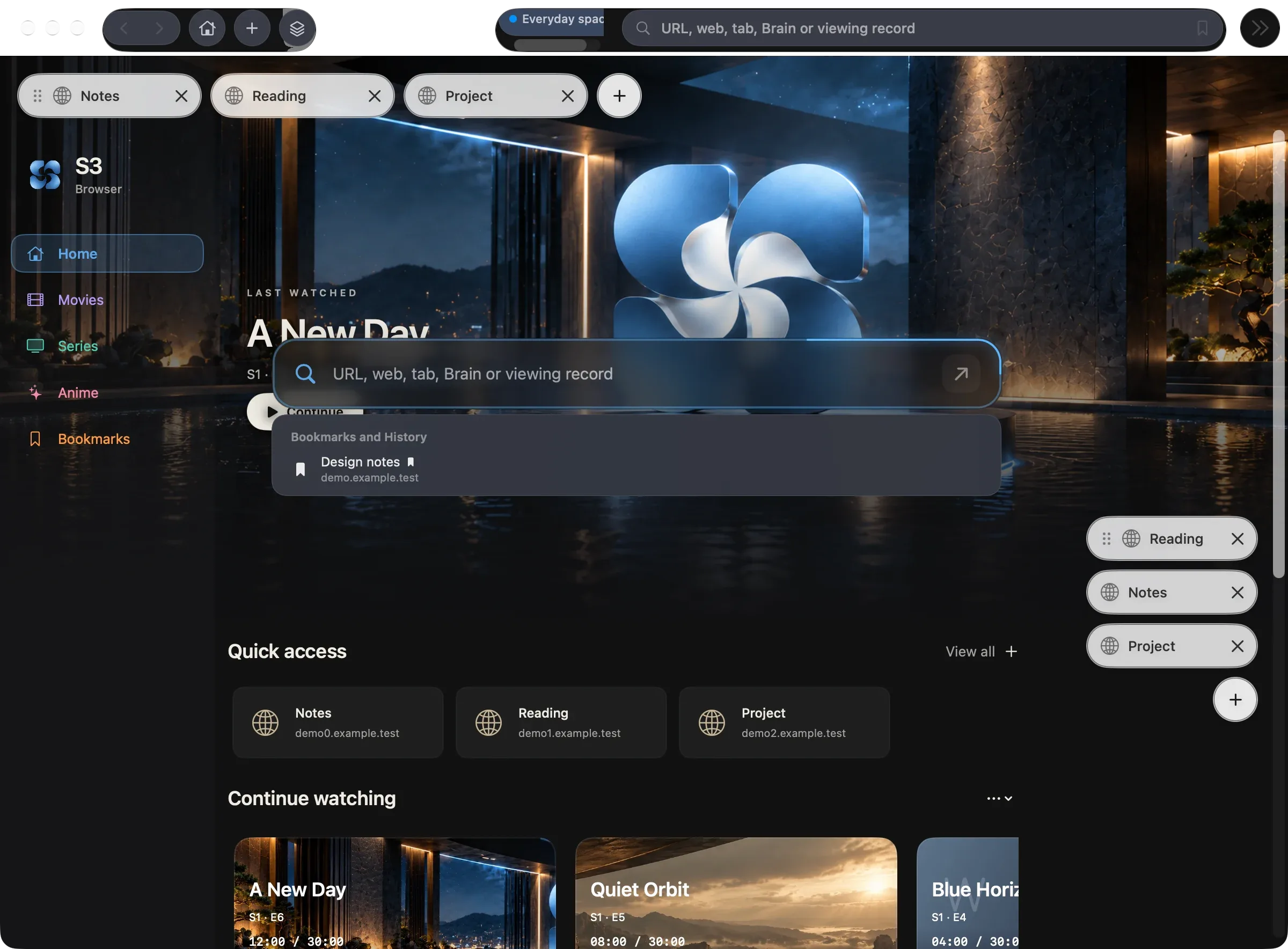
In 0.3.2, typing in the address bar brings up search engine suggestions alongside Bookmarks and History. Use the arrow keys and Return to choose; turn remote suggestions off in Settings whenever you prefer.
Click the address bar to select the whole address, or use ⌘L and ⌘T to go straight there. Open a link in another tab or window with the context menu and familiar Mac shortcuts.
- ⌘-click or middle-click opens a background tab; ⌘⇧-click brings it forward.
- A blue glow identifies the active tab.
- ⌘K searches open tabs; DuckDuckGo is the default, with Google and Bing available.
09 / Private window
Your Mac. Your choices.
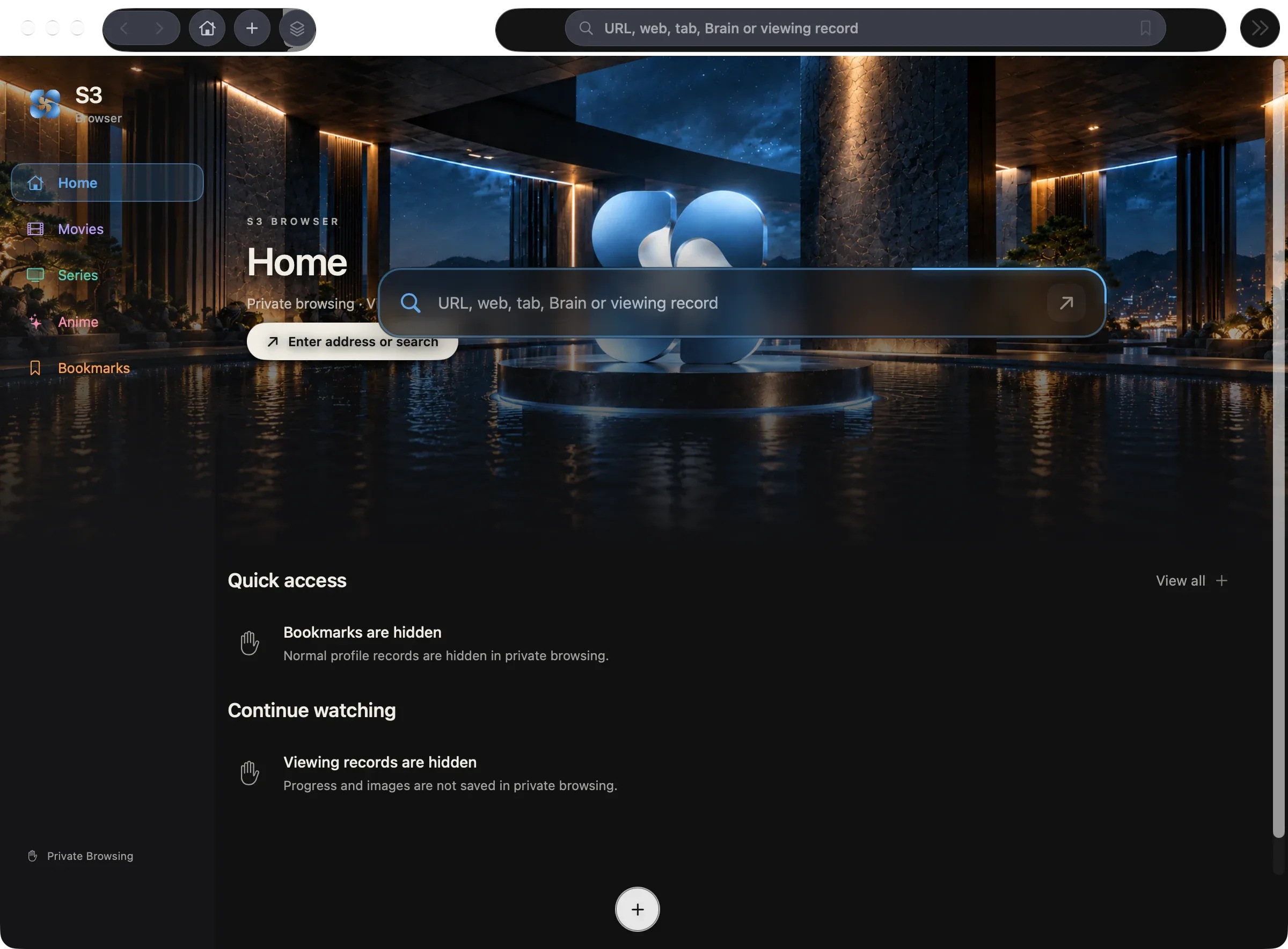
Browsing data and Browser Brain stay on your Mac, separate from the standalone S3 Brain app. A private window uses a separate, non-persistent web session and hides your normal Home records.
S3 Browser has no analytics or telemetry, and stores no passwords, one-time codes or cards. Use Apple Passwords through macOS AutoFill; optional models and cloud research have separate consent.
- Private windows write no normal history, Brain or viewing records.
- Search engine suggestions are never requested in private windows.
- Inspect and clear history, site data and raw Brain captures.
The everyday details
The rest comes with you.
The small things that make a browser feel at home on your Mac.
Tabs that can rest
Memory Saver sleeps eligible idle tabs after 5, 15 or 60 minutes, then restores their history and scroll position. Choose Never to keep them awake.
Downloads that continue
Manage downloads and resume or retry an interrupted transfer.
Bring Safari along
Import bookmarks, Reading List and history from a Safari export you choose.
Separate profiles
Keep different areas of browsing in separate browser profiles.
Encrypted backups
Back up and restore profiles with password-protected encryption.
Per-site permissions
Ask, allow or deny camera, microphone and screen access for each site.
Local documents
Open local PDF and HTML files with ⌘O.
A guided start
Nine setup steps cover Home, watch tracking, privacy, import, search and passwords. The app supports 11 interface languages.
Native Mac materials
Liquid Glass on macOS 26, with visual fallbacks on earlier supported systems and for Reduce Transparency.
Updates with your approval
Signed in-app updates install after you confirm. After 0.3.2, updates can download only the changed parts.
A way back
Pin tabs, reopen a closed tab with ⇧⌘T, return to recently closed windows and restore a session after a crash.
History you can clear
Remove one entry, a site’s history, a time range or all history. ⌥⌘⌫ opens Clear History; ⌘? opens searchable Help.
0.3.2
What’s new in 0.3.2
Better everyday browsing, from the first keystroke to your next update.
Read the release notes- Address bar suggestions, arrow-key selection and full-address editing.
- Open links in a new tab or window; a blue glow marks the active tab.
- Edge-to-edge Home and smaller updates after this bridge release.
Made for your Mac
Give your browsingsome room.
Free · Version 0.3.2 (beta)macOS 15.4 or later · Apple silicon
Download for Mac