





 S3 Brainv0.4.1
 S3 Brain / Night Archive
Shared memory for your AI tools.
Keep the decisions, reasons and results from your work in one memory folder on your Mac — ready for your next AI session.
The public download is being prepared.

One memory folder
Claude Code↔Codex
The context carries on.
- Free
- macOS 14+
- Apple silicon
- Signed & notarized
- 11 languages
01 / The reason to remember
New session.
Keep the thread.
A new AI session can lose the context of the last one. S3 Brain gives your tools a shared memory of what you proposed, what you decided, and why — so you can pick up where you left off.
02 / How it works
From a conversation to useful context.
You keep working. S3 Brain keeps the thread organized.
- 01
Bring in your work
Your AI tool can write memories as you work. Automatic capture periodically checks new Claude Code and Codex conversation records.
- 02
Check the source
Each memory claim must point to evidence in its source. Claims that fail the check go to review.
- 03
Keep the meaning
Proposals, decisions and outcomes stay separate, with their project, history and reasons attached.
- 04
Ask from another tool
A connected AI tool can search the same memory and bring the relevant context into your next task.
For background summaries, choose your own API key or a local model such as Ollama or LM Studio. Capture is periodic; completion depends on the queue and the model.
03 / A guided beginning
Start with choices you understand.
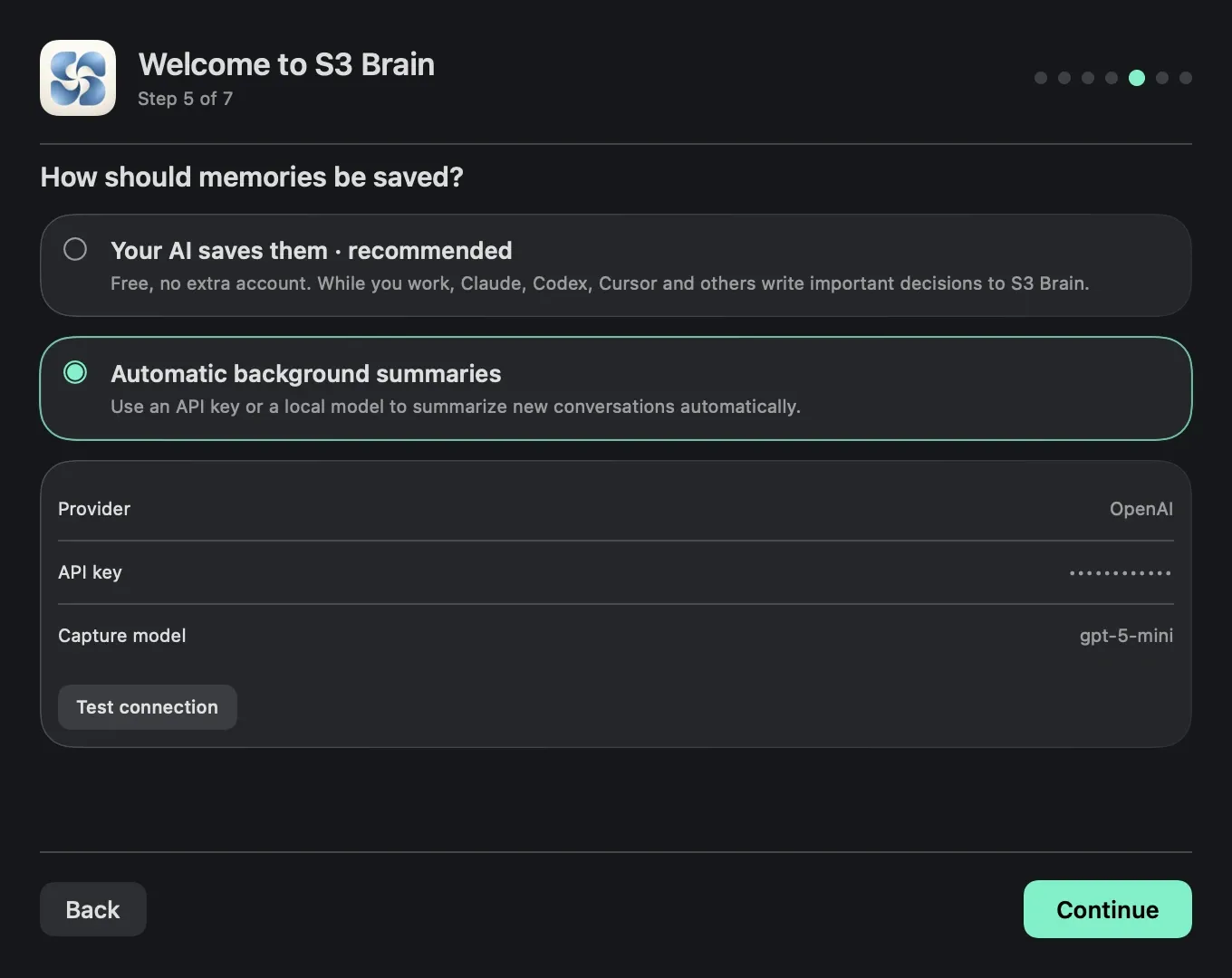
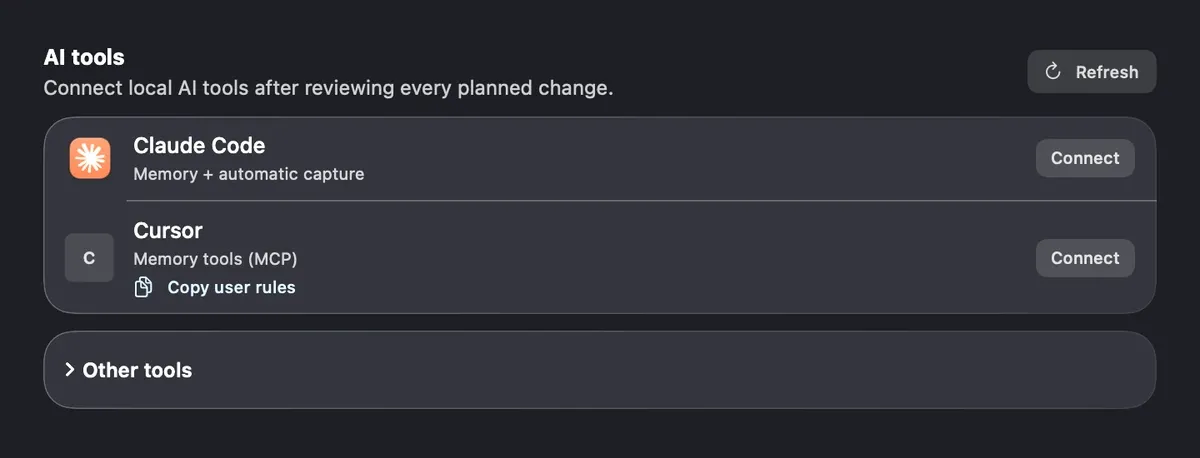
The setup assistant takes you through your memory folder, AI tools and how memories are written. The app includes its own runtime: no Python installation needed.
- Choose the folder you control.
- Preview the tools you want to connect.
- Let your AI write memories, or choose background summaries.
04 / One memory, many tools
A place for all your tools to remember.
18 AI tools in the connection guide. MCP is the bridge that lets a connected tool ask S3 Brain for context and write memories.
- Claude Code Automatic capture
- Codex Automatic capture
- Claude Desktop
- Cursor
- VS Code / GitHub Copilot
- Windsurf
- Gemini CLI
- Zed
- Cline
- LM Studio
- Kiro
- JetBrains Junie
- JetBrains AI Assistant
- opencode
- Warp
- Continue
- Antigravity
- ChatGPT Via Codex
Preview every connection. Reverse it when you choose.
Setup varies by tool; some connections use manual steps. ChatGPT chat cannot use the local server directly — use its Codex connection. Only Claude Code and Codex support automatic conversation capture.
05 / Everything it does today
Memory you can work with.
The details that make a remembered conversation useful in the next one.
A source behind each memory
Trace a claim back to its evidence. If the source check fails, it waits for review instead of entering memory.
Keep the reason, not just the answer.
Ideas stay separate from decisions
See what was suggested, what you approved and what happened. History and “why” help you follow a change.
Find the thought you need
Full-text search runs on your Mac and returns compact context. Optional local semantic search finds related meanings; it starts off.
The right project, the right context
Scope a search to a project, your general context or all projects. Keep unrelated work out of the answer.
Correct, roll back or forget
Preview a change before applying it. Correct a memory, return to an earlier revision or remove what you no longer want kept.
Keep a session private
Use #no-memory to stop new memories from that session. Earlier memories need a separate forget action.
#no-memory
Help keep secrets out
Known key and token patterns are redacted before storage or sending. This is best-effort filtering; it cannot recognize every secret.
Encrypted local backups
Backups are encrypted on your Mac and tested by restoring them. The backup and recovery key stay on the same Mac; losing it can lose both.
A folder you can actually read
Your memory lives in Markdown — ordinary text files you can open yourself. You choose and control the folder.
.md / readable by you
Work survives an interruption
A crash-safe queue retains pending work. A network, account or model problem can be retried without pretending the work is done.
Signed automatic updates
A menu-bar dot and an update card tell you when a release is ready. Confirm the signed update, or choose fully automatic updates in Settings.
More control, if you want it
The optional brain command line lets you search, inspect sources and history, check health, correct memories and manage backups.
06 / Quietly in your menu bar
See what’s ready. Know what needs you.
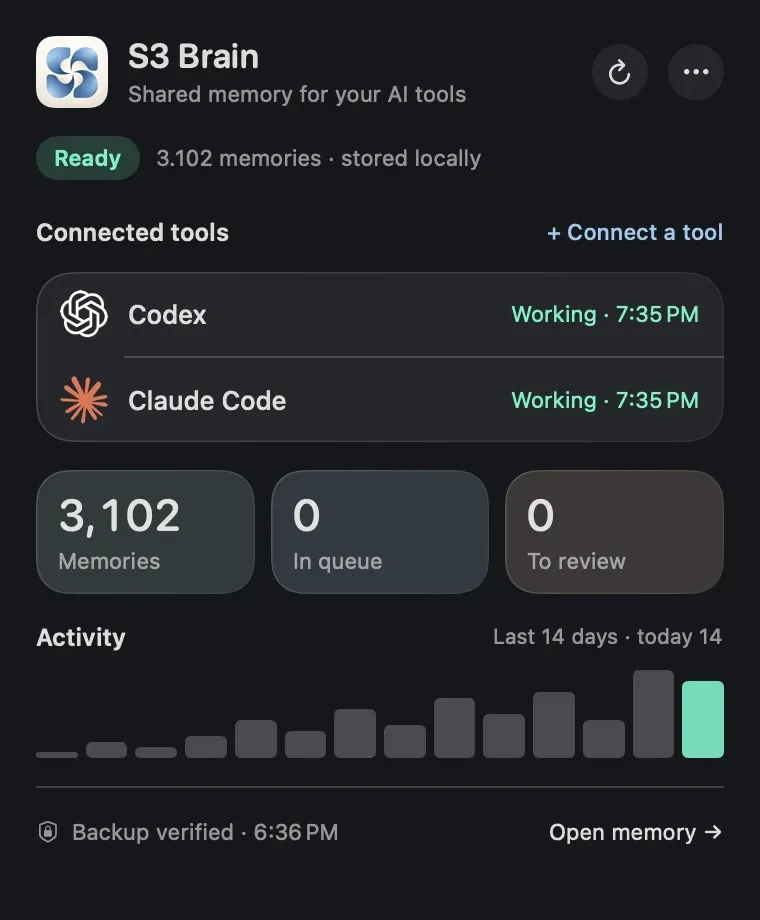
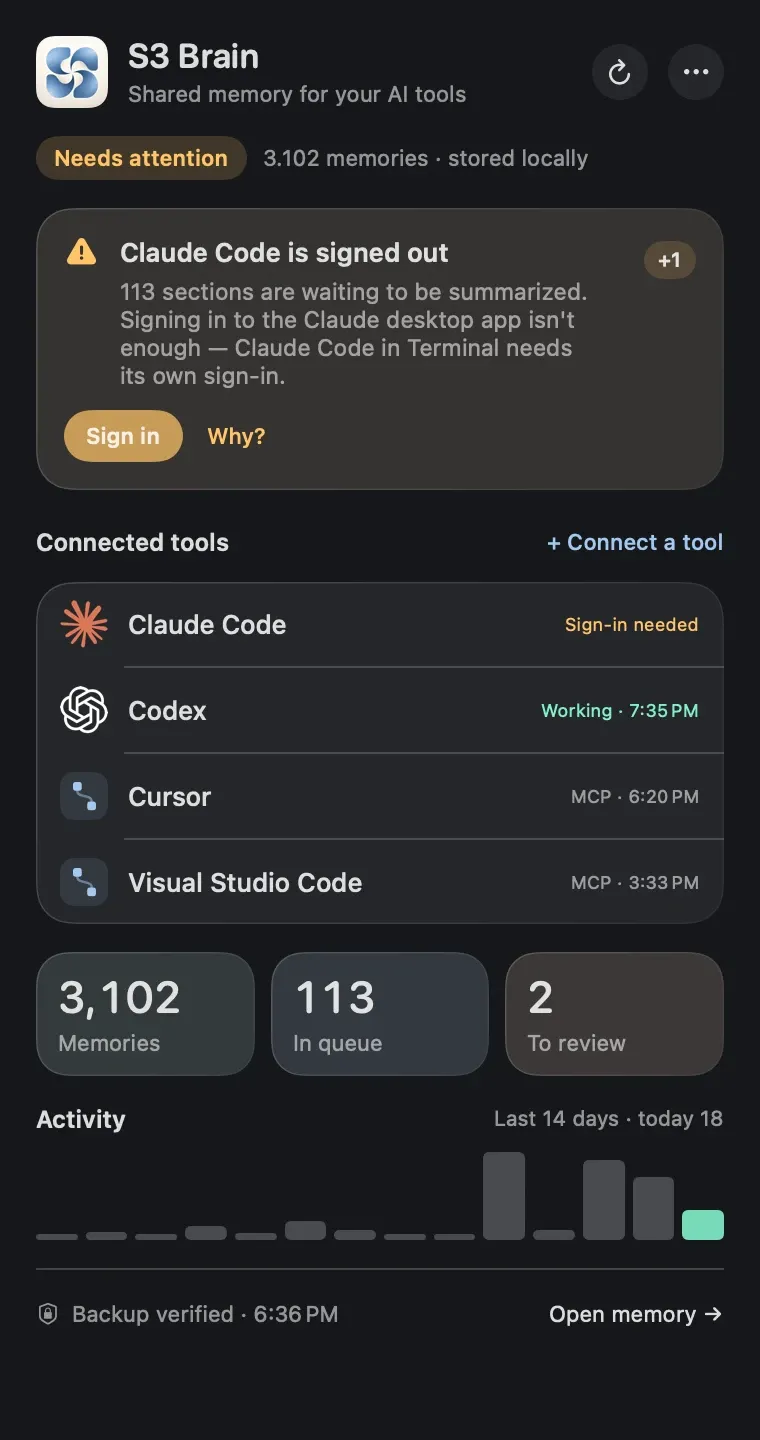
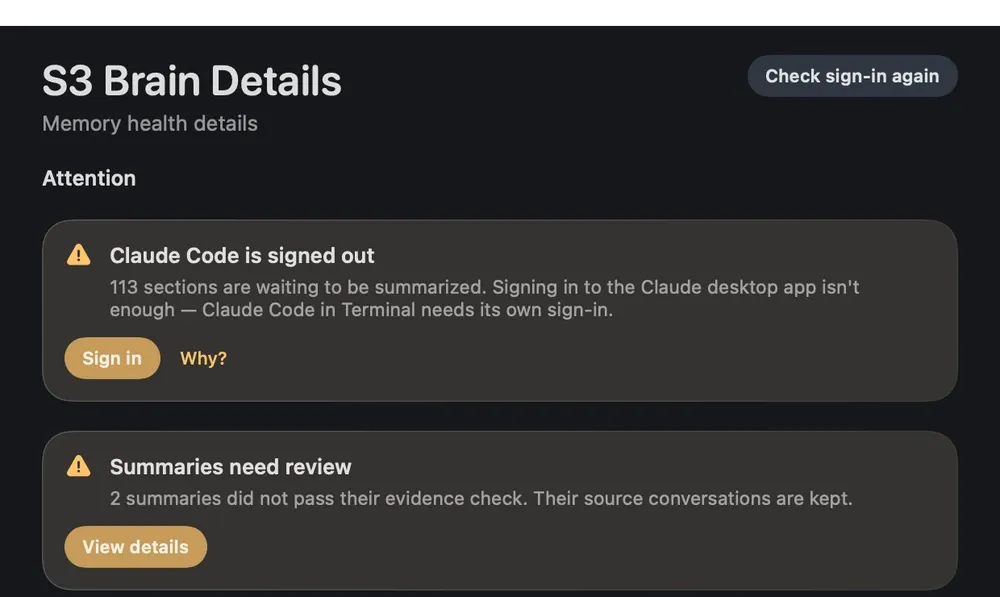
The health panel, details window and setup assistant keep the inner workings understandable.
01
A quick health check
See saved memories, pending work, review items and tool health in one panel. Refreshing it does not call an AI model.
02
A reason behind an alert
Open Details to see a sign-in problem or a source check that needs review. You can tell what is waiting and why.
A source behind each memory
Each memory claim must point to evidence in its source. Claims that fail the check go to review.
07 / Familiar from the first click
Your interface. Your language.
Choose from 11 interface languages in the setup assistant and Settings.
- English
- Türkçe
- Deutsch
- Français
- Español
- Italiano
- Português (Brasil)
- Русский
- 日本語
- 한국어
- 简体中文
08 / Privacy & control
On your Mac. On your terms.
Local memory does not mean every AI request is offline. Here is where your data goes.
Stays on your Mac
Your readable memory folder, search indexes, job queue and encrypted backups are stored locally.
- Full-text and optional semantic search run locally.
- Your memory is a readable Markdown folder you control.
- Encrypted backups stay on this Mac too.
Goes where you choose
Your AI tool can write memories directly. Optional background summaries send selected excerpts to your chosen API provider, or use a local model.
- Ollama or LM Studio are local-model options.
- A synced memory folder follows your iCloud or other sync settings.
- Update checks request release information from s3dat.com.
Source checks still need judgment
Models can misunderstand a conversation, and search can miss evidence. Check important facts against their sources.
Forgetting has a boundary
Forgetting changes S3 Brain’s memory. It does not delete provider transcripts, old backups or copies you made elsewhere.
09 / Made for your Mac
A fresh start. With a memory.
S3 Brain 0.4.1 is signed and notarized by Apple. The public download is coming soon.
The public download is being prepared.
Free · Signed and notarized by Apple
- System
- macOS 14 or later
- Chip
- Apple silicon · M1 and later
- Version
- 0.4.1 · build 7
- Download
- ~180 MB · DMG
- Price
- Free
When the download is available
- Open the DMG and move S3 Brain to Applications.
- Open S3 Brain and follow the setup assistant.
- Connect your tools and choose how to save memories.
A few things you might be wondering.
Is S3 Brain free?
Yes. S3 Brain is free. If you choose an API provider for background summaries, that provider’s usage and pricing terms apply. You can also let your own AI tool write memories or choose a local model.
Which Macs can run it?
S3 Brain needs macOS 14 or later and Apple silicon (M1 or later). It is self-contained; you do not need to install Python.
Which AI tools can use it?
The connection guide lists 18 tools, including Claude Code, Codex, Cursor, Claude Desktop and VS Code / GitHub Copilot. Some use manual setup. ChatGPT uses the Codex connection; ordinary chat mode cannot connect directly to the local server. You preview connections and can reverse them.
Does it read all my AI chats?
No. Automatic capture periodically checks accessible local Claude Code and Codex conversation records only. Connecting another tool lets it use the shared memory; it does not add automatic capture of that tool’s chats. Cloud-only chats are not automatically captured.
Where is my data?
Your memory folder, search indexes and encrypted backups stay on your Mac. Background summaries can send selected excerpts to the API provider you choose, or use a local model. If you put the folder in a synced location, that service can sync it. Secret redaction is best effort.
How do updates work?
An update appears as a dot on the menu-bar icon and a card in the panel. Updates are signed. Confirm the installation, or choose fully automatic updates in Settings. Update checks contact s3dat.com for release information.